De-Feedback® V1
A.I. zero-latency gain before feedback + dereverb + denoise
Free patches included
A.I. zero-latency gain before feedback + dereverb + denoise
Professional hardware platforms we have independently tested and fully verified to run De-Feedback in demanding live-sound environments. License sold separately.

Elite users can run ~8 instances reliably (and a few other favorite plugins) on Waves SuperRack LiveBox Dante/MADI hardware, between 3-5ms (configuration-dependent). Get LiveBox here »

Elite users can run 6 instances with chain sandboxing (and a few other favorite plugins) on Fourier Audio transform.engine, at around 5ms (configuration-dependent). Get transform.engine Here »
De-Feedback-only hardware combo options we have preconfigured and fully verified. License sold separately.
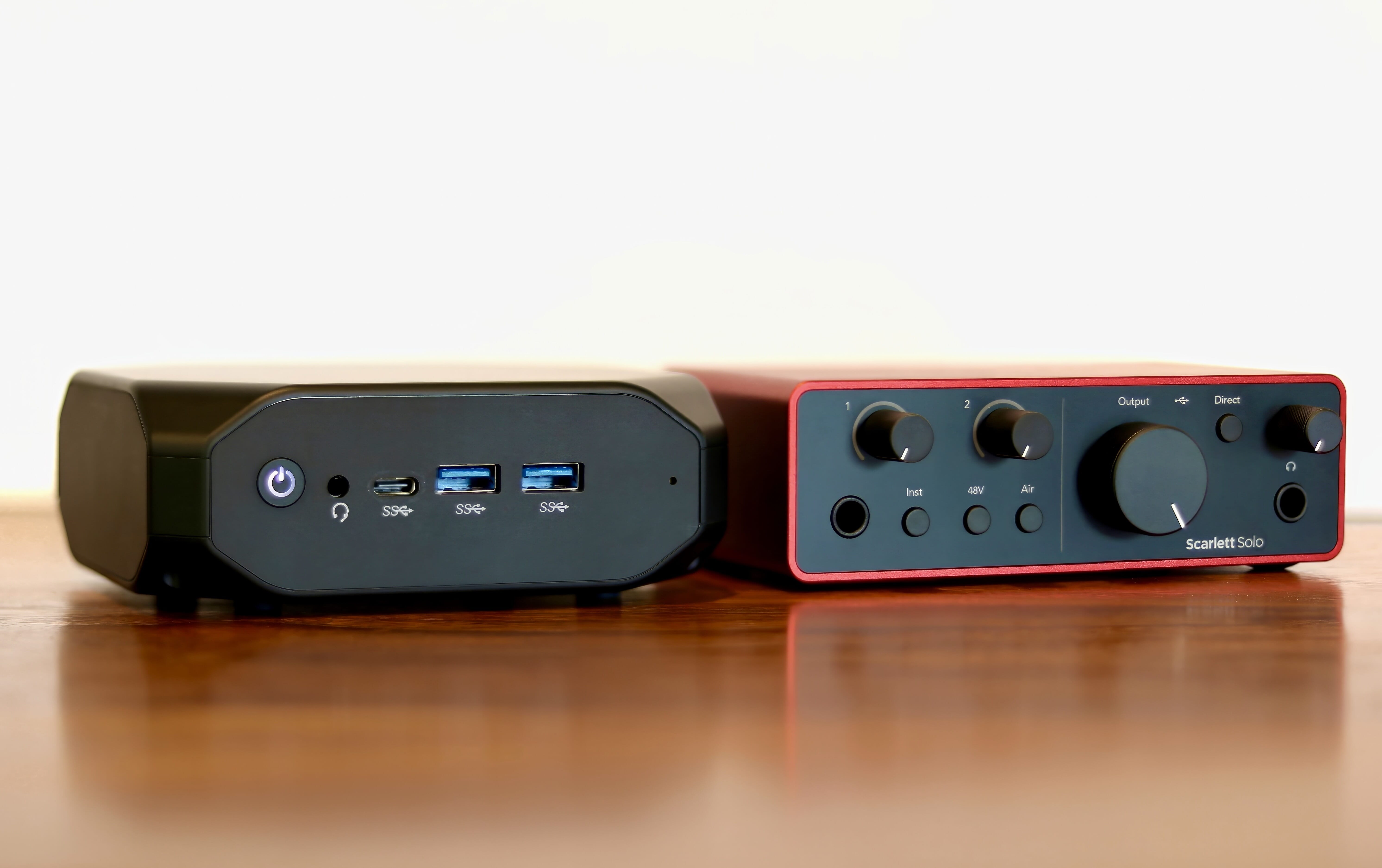

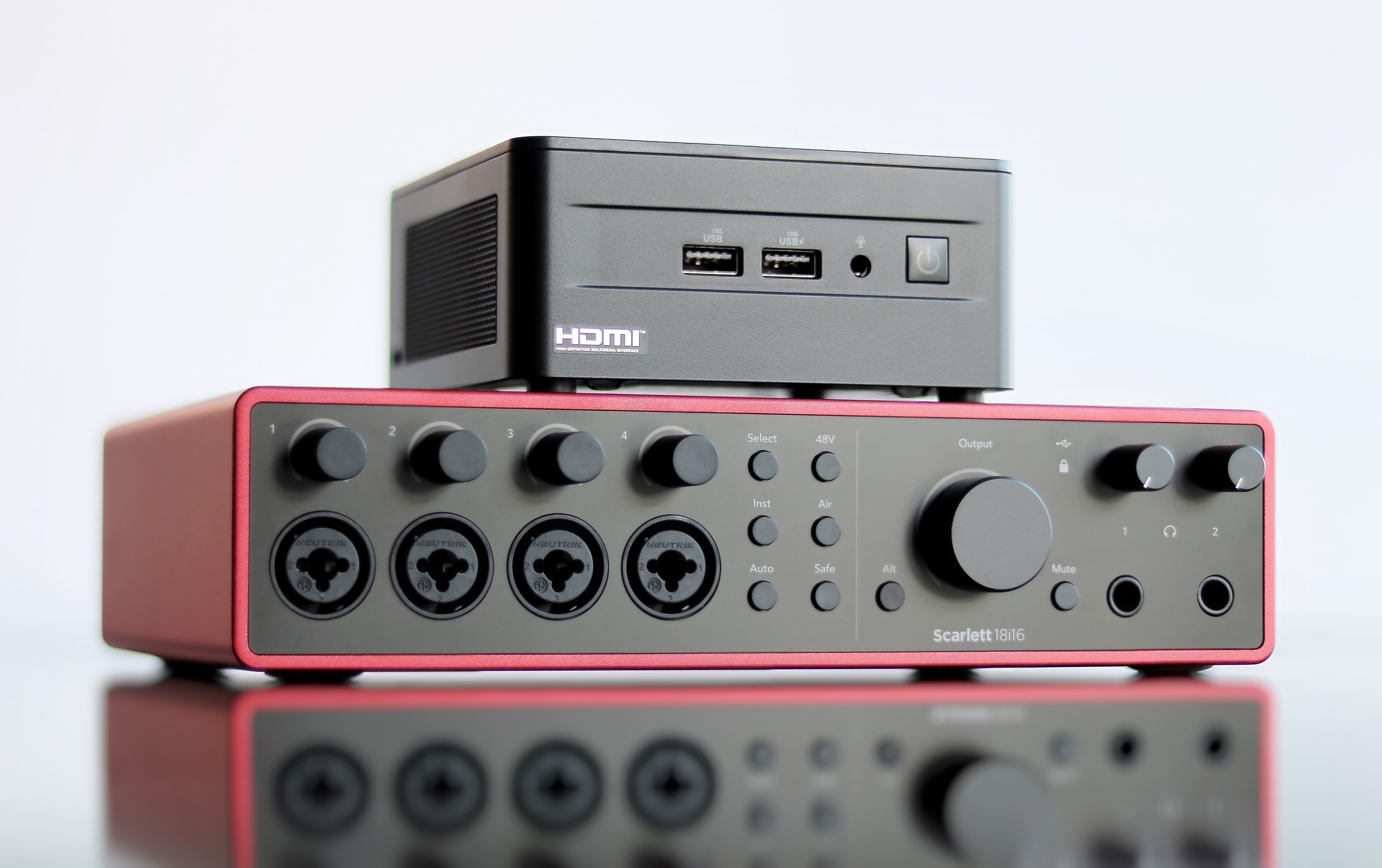
-
This list includes official and unofficial hardware units and setups. Have systems for rent? Send us your info to be included here.
-
Loading nearby rentals…
Read through this FAQ. Consider purchasing a verified hardware platform or one of our dedicated hardware combos (the two computer/Focusrite combos come with the non-activated Windows plugin and VST Host DAW pre-installed) because most other computers won't handle the extremely high CPU load. You can directly download the non-activated plugin for either Windows or Mac by clicking the "Download for..." buttons on this website. If you do buy our Option 1 or Option 2 PRO combo, at least read through "How do I activate..." and "When the dedicated hardware arrives..." in this FAQ. The non-activated plugin runs in trial mode, which simply means there are periodic audio drop-outs. No plugin calibration or live operation required. Tips/tricks and troubleshooting are at the bottom of this FAQ. Click on the social media icons on the main page to see it in action and watch tutorial videos, especially the YouTube playlist. License sales are final, so try it before buying it! Hardware sales adhere to the terms and conditions of each supplier. Cannot ship Option 1 or Option 2 computers to Russia or Ukraine, and cannot ship the Option 1 computer to India. Anybody anywhere can buy a license, and the computers ship globally within a few weeks if there are no supply chain issues at the moment.
Version 1.1.4, which you can verify in the plugin UI window › Options › About. In VST Host specifically, click the "plugin edit" dial icon next to the blue info icon inside of the plugin instance box to open the UI window. Version history notes are at the bottom of this FAQ.
Yes, the license is universal.
Sell your Bitcoin, fund Alpha Labs, then maybe we will.
Yes, the license is just a set of numbers that appear on the screen at checkout, and are also emailed to you from Fastspring.
It lets you keep Version 1.x.x forever without having to periodically revalidate, but you should expect to only get access to free patches and sub-versions, not primary version upgrades.
The license ties itself to your machine, combining certain hardware identifiers that are most likely to remain permanent over time. Before opening your DAW to activate the plugin, first make sure that you don't have any extra or temporary harddrives or other network devices or cards connected to the computer that are not a permanent part of the machine. Establish an internet connection, then open the DAW and activate the plugin by opening the UI window and clicking on Options and then License Management. In VST Host specifically, click the "plugin edit" dial icon next to the blue info icon inside of the plugin instance box to open the UI window. Enter your credentials and click Activate. If any additional non-permanent hardware elements accidentally get included in the fingerprint for your machine license, this could cause problems for transfers/reactivations in the future if these hardware items come and go. We do not recommend running this plugin on virtual machines or copies of operating systems running on external portable drives, because their identifiers often shift over time. Before updating or reinstalling the OS or sending the computer in for physical repairs, deactivate the current license on the machine so that it can be successfully reactivated again at a later point. The license exists on your machine separately from the plugin/DAW, but can only be managed through the plugin UI. A lost or damaged machine generally means a permanently lost license, so be careful!
There are no limits on the number of times that you can transfer licenses from machine to machine, even deactivating and reactivating the same machine.
Yes, enter your license credentials, click Activate and follow each of the prompts. For deactivations/transfers, click Deactivate and follow the prompts. You'll need a USB key or other method of transferring text-based files between machines. Do not interrupt or cut short the activation or deactivation process or prematurely close the pop-up windows.
To run a patch or upgrade, make sure the DAW is not open, download the new version and install it in the same location, then reopen the DAW or restart your machine. You may need to clear the cache and/or rescan for plugins. As of V1.1.2 on our dedicated hardware combos, you will also need to download the latest VST Host folder and select the version associated with your hardware option. Make sure VST Host is not open, delete the current "vsthostx64" folder from your Desktop and replace it with the new one from the downloaded .zip file, then delete the .zip. Open VST Host and, if prompted with a security warning, un-check "Always ask before opening this file" and run the program. Restart your machine to confirm VST Host opens automatically at boot. The plugin must remain on the Desktop for stock performance settings to work, and the file name — including the extension — must remain unchanged.
The plugin itself is fungible; it will operate on any machine in trial mode with periodic audio drops without an active license. The paid license is tied to the specific machine you choose to run the plugin on, and is sold and emailed to you by Fastspring. The dedicated NUC computers are offered through SNUC. We recommend a GEN4 Focusrite Scarlett audio interface with the driver from our website — Solo for Option 1, 18i16 for Option 2 PRO. GEN2 and older is not recommended.
After correctly filling out the computer request form (including the billing address of your payment method if different from the shipping address), you will receive an automatic confirmation email, and SNUC will contact you within a few business days with a direct payment link including tax and shipping. Note that the Option 1 machine fits into a 1U rackspace. The Option 2 PRO machine short chassis will also fit into a 1U rackspace. After payment, you will receive the computer and any associated Focusrite interfaces that you ordered through Sweetwater or elsewhere, usually within a few weeks if there are no serious supply chain disruptions at the moment.
First, plug the interface into any computer USB port (except the USB-C port on Option 1, which has been unreliable). Use the USB cables that came with the Focusrite. Make sure the interface is switched on (if applicable), then connect the computer power cable. For GEN4 interfaces, download and install Focusrite Control 2, then download and install the specific driver from our website.
You'll need an HDMI screen and USB keyboard/mouse, and preferably an internet connection to get started. Do not have any extra or temporary harddrives or network devices connected when activating the plugin, as these may get included in the machine fingerprint. In VST Host, click the "plugin edit" dial icon to open the UI window, then choose Options › License Management and activate with your credentials.
Apply any available firmware updates to the interface while connected to the internet. Then go to Settings › System › Sound › More Sound Settings and disable the Focusrite interface on both the Playback and Recording tabs so the computer doesn't send alerts through it during use. Disconnect and disable internet after setup; we recommend disabling Wi-Fi/Bluetooth and disconnecting Ethernet during normal use to reduce CPU load, and because antivirus protection has been turned off to prioritize audio processing.
To power off, briefly press and release the power button (do not hold). If the machine loses power, it will auto-boot on reconnect and recall the last saved performance. Always ensure the interface is connected and on before powering the computer. Best practice is to use a battery backup power supply, as multiple abrupt power losses can corrupt the VST Host folder — a backup copy is in Downloads.
Watch the YouTube video tutorial for VST Host featuring De-Feedback by clicking the YouTube icon on the website.
There is a very long and complicated list of things that have been done to the machine BIOS, operating system, and various apps and settings to maximize performance for low latency audio plugins. Our dedicated NUC/Focusrite combo options have been optimized for De-Feedback using the Focusrite Scarlett GEN3 and GEN4 interfaces with the specific driver from our website. Even if you already have a nice computer or a popular expensive audio interface, there is no guarantee it will work at extremely low latency. Do not run additional programs, plugins, or change OS/app settings without our approval. In general, we recommend a dedicated hardware unit for De-Feedback, separate from hardware running other programs and apps. To run De-Feedback with other plugins as well, see the verified hardware platform options.
Sure, give it a try. But since most people don't have hardware capable of running super CPU-intensive plugins reliably for live sound at low latency, we spent about a year testing and verifying the options on our site. We recommend choosing them instead. Another good option is the AU version for Mac on a Silicon (M) series machine, but we can't 100% guarantee performance for Mac in the same way we can on our dedicated hardwares.
As many as your machine CPU will handle at a given buffer size. This also applies to our dedicated hardwares — you can run more instances than advertised if you can tolerate higher latencies.
De-Feedback requires dedicated hardware in most cases; our NUC/Focusrite combos have only been verified to handle the indicated number of De-Feedback instances with nothing else running. To use other plugins as well, we recommend the verified hardware platforms listed on our website that are designed to be generalized plugin servers.
No, the plugin runs at zero latency. The only latency to worry about is introduced by your computer and audio I/O method.
It depends. The Option 1 combo can do one instance (mono or stereo) at 4.9ms roundtrip at 48kHz on the lowest buffer size of 16 samples with Safe Mode on. The Option 2 PRO can do up to four mono instances at the same latency. The Waves Livebox can run about eight instances with a few other plugins at 3–5ms. The Fourier Audio transform.engine runs six instances with a few other plugins at about 5ms. Yamaha's USB option for DM3/DM7 runs at just under 6ms on the dedicated NUCs. Macs running Dante DVS can do about 6.8ms, or 2.3ms with the Focusrite Rednet TNX.
The plugin can run at higher sample rates, but we have only confirmed stability on our dedicated NUC/Focusrite hardware at 48kHz. The Waves Livebox and Fourier Audio transform.engine both run fine at higher sample rates — you'll need to increase the buffer size to maintain similar roundtrip latency so the CPU doesn't overload.
Maybe. Connecting a screen or peripherals and opening windows on the Option 1 machine can cause temporary audio glitches, whereas the Option 2 PRO handles this without issue in almost all cases. The PRO machine is also reportedly better under physical stresses like heat and humidity, and is more future-proof for V2+ processing requirements.
Sure, but you'll need to adjust the routing in VST Host. Generally it wouldn't make sense to use a bigger interface with the smaller computer, since it can't handle more than one instance at the lowest buffer anyway — unless you plan to run it at a higher buffer for more instances.
Any GEN3 or GEN4 Scarlett product will work fine, but you may need to download the proper control program from Focusrite, then install the driver from our website. Then configure routing in VST Host and save as a performance.
Yes, but you may need to increase the buffer size, which increases latency. For example, two instances on the Option 1 computer at a buffer size of 32. We tested up to eight mono instances on the PRO computer with just under 10ms total latency on larger interfaces.
Download the latest version from our website and install it in the same location as before. If you have an active license, it will work fine again. Don't change the file name or extension, and don't move or delete any folders or files the plugin creates. Also don't rename the computer or user account. As of V1.1.3, installing the latest version of the plugin makes previous versions incompatible with your license. If for some reason you want to revert back to an old version, you first have to deactivate using V1.1.3 or later, and reactivate using V1.1.2 or earlier.
Download the latest version from our website for your hardware option. Make sure VST Host is not open, delete the current folder from your Desktop and replace it with the new one from the .zip file, then delete the .zip. Open VST Host, un-check "Always ask before opening this file" if prompted, run the program, then restart your machine to confirm it auto-opens at boot.
Download the image file and load it onto the machine to reset to factory settings. There is a YouTube video that explains how to do this.
Don't try it. Having multiple copies of this plugin — of the same or different version — on your machine simultaneously could crash it. Delete the current version before downloading or installing any new version on that machine. We designed the licensing system to work with only one plugin file at a time.
It helps achieve more gain before feedback from live microphones, largely removes room reverb, and reduces background noise. Think of it as a general vocal cleaner/isolator — operating at zero added latency using extremely advanced AI processing.
Yes, all sizes and kinds. We do notice that if the mic is closer than about 6ft to the loudspeakers, anti-feedback performance can begin to lessen.
Yes, both.
No. This version helps to mostly prevent feedback, but if you push the gain high enough you can potentially defeat the algorithm. Future versions will be more aggressive — it's hard to do without changing the sound of the vocals. We're working on it!
No, the plugin should not generally change the sound of the vocals under normal conditions. With really high gain settings, this version can occasionally produce short "ringy" or echo-like artifacts that future versions will aim to avoid.
Yes, you'll need to EQ for tone, but this plugin largely reduces the need to burn EQ bands fighting feedback. In extreme situations you can still use a bit of EQ to "ring out" the first few problematic frequencies, just to maximize overall performance.
No, though we tried to keep phase shift to a minimum and it shouldn't be noticeable under normal usage. Note that the small bit of phase shift is not always static — it changes randomly as the AI removes feedback.
No, it should not change the dynamic range of the vocals. Under some rare circumstances — considerable background noise, or a singer using a very pure sine-like tone — the vocal level could be slightly reduced momentarily. Future versions will aim to avoid this.
Yes, it operates at all normal sample rates from 44.1k to 96k with any bit depth the DAW allows. Audio throughput is full range, and the effective processing range is 100Hz–22,000Hz.
It will be mono or stereo depending on how your DAW audio channel is configured. For a mono signal, make sure the channel is configured as mono and that you don't accidentally use one side of a stereo plugin. In VST Host the plugin is permanently stereo — make sure only one side receives audio to treat it as mono. We do not recommend using the stereo version as "dual mono" with independent uncorrelated inputs. The stereo version coordinates phase shifts across channels and is designed for truly stereo inputs (e.g. two nearby microphones picking up the same content). The stereo version uses practically the same CPU as mono.
This version is calibrated best for singular human speech and singing vocals, and works "ok" for choirs. It can be destructive to the sound of instruments. Later versions will handle a wider range of sonic inputs.
The input can't be too ambient — it needs to be more than 50% direct sound as opposed to ambient, "roomy," or background noise.
No, vocal sound FX or alternative vocalization devices may not always be handled perfectly. Future versions will aim to improve this.
No, anything from whispering to shouting will work fine.
There is a strength level where 0% is unprocessed and 100% is fully processed. We recommend leaving it at 100% for normal use. There is also a mute button for patch troubleshooting.
Not that we know of — that's why we made this one. We got tired of waiting for the "big" companies to solve the problem of feedback without destroying the sound through ridiculous EQ dips and annoying volume thresholds/gates. AI was the obvious answer, and this plugin is a good start.
Magic. (Seriously: we trained our boutique AI model with many terabytes of customized audio data, telling it to listen for feedback, room reverb, and background noise, and then eliminate those from the vocal signal in real time with no latency. Easier said than done.)
Yes, we're already working on them, but AI tech is hard and we're only comfortable releasing what has proven stable and reliable. We plan about one new primary version per year, with patches along the way, if we manage to raise the funds necessary to continue R&D.
It depends. If lots of people buy this first version, we'll have funds to reinvest in better AI training hardware, more staff, and more training data. Progress is highly proportional to the amount of new training data we can compile and the time it takes to train new models.
Sure, but we only offer free "support" for our product up to two degrees of ownership transfer. You can of course always sell it to whomever whenever, but this means we only officially support you and the next person you sell it to, but nobody after that, at least not for free. We also don't support renters — you are expected to be the support line for anyone you rent to. Note: it is against the Windows IoT Enterprise license agreement to make copies of the OS or disk.
Sure, but check the manufacturer's terms and conditions first.
Not at this time, but we do offer discounts on bulk license orders of ten or more.
Not at this time.
Tell everyone you know about it! Post success stories on social media and tag Alpha Sound, our parent company. Let us know privately how we can improve the plugin, and be honest.
Alpha Labs LLC is a software startup company. The plugins Alpha Labs develops were firstly intended for use by our parent company Alpha Sound, but are now available for sale to the public. Enjoy!
It sounds its absolute best inserted on a single vocal channel. Some people run the mic into the interface, then out into the mixer. Others insert it on the mixer channel itself. For multiple vocals that aren't talking/singing simultaneously, create a subgroup on your mixer with the plugin inserted, preferably after vocals have been managed by an automixer like Dugan. Be aware that too many vocals simultaneously can trick the plugin — keep minimal discrete vocal signals through any individual instance.
The plugin works best with a raw uncompressed vocal signal, but for most situations a post-EQ/dynamics or post-fader signal is fine. Be careful not to clip the inputs of your interface.
Download the Yamaha Steinberg USB driver (pre-installed on our recommended NUC hardware options as of Jan 1, 2025) and select the Yamaha ASIO device in the DAW. Go to the ASIO control panel and set the mode to Standard with latency at the lowest setting for Option 2 PRO, or second-lowest for Option 1. On your Yamaha console, select USB as the I/O.
A good arrangement: send channels to a mix (not the stereo bus), send that mix to the stereo bus, but insert the mix through USB to the computer. This lets you run multiple vocal channels through a single instance — just ensure no more than two or three vocalists are talking/singing simultaneously for best performance. Make sure the console is on before the computer so the DAW automatically reconnects after a power cycle.
Yes. On the Solo using the "1 mono (inputs 1/2 summed, outputs 1/2 mirrored)" performance, you can plug into either the XLR or 1/4" inputs and they'll be summed into the one plugin instance, with the output mirrored on both interface outputs. On the 18i16 using the "4 mono (inputs 1/5, 2/6, 3/7, 4/8 summed)" performance, channels 1–4 are summed with channels 5–8 respectively, each summed pair going into its corresponding plugin instance and out to its corresponding output.
Go to View Hidden Files or uncheck "Hide extensions for known file types" and see if the file extension says Defeedback.vst3.exe, ./Defeedback.vst3, or ._Defeedback.vst3. If so, delete those extra characters and try again. The file should always be exactly Defeedback.vst3 with no other characters or symbols in the name.
Make sure you are actually running audio through the plugin and nowhere else. If you click Mute in the plugin UI window, all audio should go away. If not, there's a problem with your patching/routing.
Make sure your USB cable is a data transfer cable, not merely a charging cable — preferably the one that came with the Focusrite. Make sure you're using the recommended driver. If you're on your own machine, try increasing the latency (buffer size).
You likely have a parallel patch somewhere — make sure you aren't sending both an unprocessed and a processed version of the signal to the main output. On Focusrite units, make sure the "Direct" button is white, not green. As a test, mute the plugin and make sure all audio goes away; if not, there's a patching/routing problem.
Click on the hidden icons in the lower right corner of the screen, right-click AnyDesk and close it. Search Settings for "Add or Remove Programs" and uninstall AnyDesk. If desired, redownload and reinstall AnyDesk afterward. (Known AnyDesk addresses: 1 811 905 542 or 1 585 450 973.)
Fixed more CPU usage issues on Mac. Made level meter stay permanently, further updated how the plugin license ties to the machine. Minor bug fixes, UI changes. Added an entry field for "optional info" during activation for specific use cases involving inventory tracking (contact us for details). Increased the strength range, so that what is now 80% was the old 100% setting.
Fixed CPU usage issues on Mac, especially for AU format. Added a level meter, audio passthrough mode for load testing, reworked error messaging during Activation/Deactivation, and updated how the plugin license ties to the machine. Note: after using V1.1.3 or later, V1.1.2 will load in Trial Mode unless the license is first deactivated via V1.1.3 or later and reactivated with V1.1.2 or earlier.
Mostly fixed SPL loss during singing and multivoice/choir content, removed noise reduction button (now baked into processing), added mute button for signal path troubleshooting, and generally improved overall sonic performance.
CPU load reductions, fixed issue where "beta" was not displayed on Mac VST3 UI, added platform identifier in About, minor bug fixes.
Minor changes to UI.
Added beta test versions for Mac, improved the offline deactivation sequence to avoid accidental deactivations, and fixed minor bugs.
Added stereo support, allowed offline activations/deactivations, and fixed minor bugs.
Initial release.
Alpha Labs
Last Modified on June 9, 2026
Important: Please read this agreement carefully before continuing to use this Software.
Section 16 of this End User License Agreement contains a binding arbitration clause and class action waiver.
THIS SECTION CONTAINS A BINDING ARBITRATION AGREEMENT AND CLASS ACTION WAIVER. IT AFFECTS YOUR LEGAL RIGHTS. PLEASE READ IT CAREFULLY.
This End User License Agreement (the “Agreement”) applies to the De-Feedback® (the “Software”), provided by Alpha Labs LLC (“Alpha Labs”).
NOTICE TO PURCHASERS: Your purchase or download of the Software provides you with a license to use the Software under the terms of this Agreement - it is not a transfer of ownership. When you “buy” or “purchase” the Software, you are acquiring a license to use the Software according to these terms. The full terms and conditions of this license are detailed below.
By continuing to use the Software, you agree as follows:
1.1. You understand and intend that this Agreement is a legally binding agreement and the equivalent of a signed, written contract;
1.2. You will use the Software in accordance with applicable laws and regulations and in accordance with the terms and conditions in this Agreement as it may be amended by Alpha Labs from time to time; and
1.3. You understand, accept, and have received this Agreement and its terms and conditions, and acknowledge and demonstrate that you can access this Agreement.
If you do not agree with the terms and conditions in this Agreement, please discontinue all further use of the Software.
Upon purchase, Alpha Labs grants you a single, non-exclusive, and limited personal license to access and use the Software. This license is conditioned on your continued compliance with the terms and conditions in this Agreement. You may not copy, decompile, reverse-engineer, disassemble, attempt to derive the source code of, modify, or create derivative works of the Software, any updates, or any part thereof (except as and only to the extent that any foregoing restriction is prohibited by applicable law or to the extent as may be permitted by the licensing terms governing use of any open-sourced components included with the Software).
You may transfer your license to another user, but if you do so we will not offer technical support beyond the first transfer away from the original purchaser.
You understand that you may receive business-related communications from Alpha Labs through the Software or through email, such as product and other announcements, and administrative notices. You agree that these communications are not “unsolicited commercial email advertisements” and you agree to receive them.
Marketing-related email messages will be accompanied by instructions for opting out.
Alpha Labs may, in its sole discretion, provide you with customer and technical support services related to the Software (“Support Services”). Alpha Labs is not required to provide Support Services unless otherwise required by applicable law. No failure to provide, or to continue to provide, Support Services will be a default of Alpha Labs under this Agreement. Any supplemental software code provided to you as part of the Support Services will be treated as part of the Software, and as between you and Alpha Labs will be and remain the sole property of Alpha Labs and will be subject to the terms and conditions of this Agreement.
Alpha Labs customer support may be reached by contacting us at support@alphalabsaudio.com. You agree that you will look solely to Alpha Labs in connection with Support Services.
Alpha Labs reserves the right to modify or discontinue, temporarily or permanently, the Software (or any part of the Software) with or without notice at any time. You agree that Alpha Labs will not be liable to you or any third party for any modification, suspension, or discontinuance of the Software.
Alpha Labs reserves the right to monitor use of the Software to determine compliance with this Agreement, as well as the right to edit, refuse to post, or remove any Content, information, or materials, in whole or in part, at our sole discretion. We reserve the right to refuse access to the Software to anyone, or terminate any License, for any reason, at any time.
Electronic communications using the Software or the website may not always be encrypted. You acknowledge that there is a risk that data, including email, electronic communications, and personal data, may be accessed by unauthorized third parties when communicated between you and Alpha Labs or between you and other parties.
Alpha Labs and its affiliates and agents are permitted, but not obligated, to review or retain your communications.
The Software or our website may contain links to other sites and software applications, including through display advertisements (the “Linked Services”). Alpha Labs does not control the Linked Services, and Alpha Labs and its affiliates and agents make no representations whatsoever concerning the content, accuracy, security or privacy of those Linked Services. The fact that Alpha Labs has provided a link to an external location is not an endorsement, authorization, sponsorship, or affiliation with respect to such Linked Services, its owners, or its providers. There are risks in using any information, software, or products found on the Internet, and Alpha Labs cautions you to make sure you understand these risks before retrieving, using, relying upon, or purchasing anything via the Internet. You agree that under no circumstances will you hold Alpha Labs or its affiliates or agents liable for any loss or damage caused by use of or reliance on any content, goods, or services available on Linked Services.
The Software is owned by Alpha Labs and is protected by United States copyright laws and international treaty provisions. All Software content, trademarks, services marks, trade names, logos, and icons are proprietary to Alpha Labs or are used under license from a third party. Nothing contained in the Software should be seen as granting any license or right to use any trademark displayed in the Software without the written permission of Alpha Labs or such third party that may own the trademarks displayed in the Software. Your use of the trademarks displayed in the Software, or any other content in the Software, except as provided in this Agreement, is strictly prohibited.
Intellectual property displayed through the Software is either the property of, or used with permission by, Alpha Labs. You are prohibited from using or authorizing the use of this intellectual property unless specifically permitted under the Agreement. Any unauthorized use of this intellectual property may violate copyright laws, trademark laws, the laws of privacy and publicity, or other regulations and statutes.
Your use of the Software is entirely at your own risk.
The Software is provided by Alpha Labs on an as-is basis. Alpha Labs expressly disclaims all warranties of any kind, whether express or implied, including, but not limited to the implied warranties of merchantability, fitness for a particular purpose and non-infringement.
Alpha Labs makes no warranty that (i) the Software will meet your requirements, (ii) that operation of the Software will be uninterrupted, timely, secure, or error-free, or (iii) the results that may be obtained from the use of the Software will be accurate or reliable.
No advice or information, whether oral or written, obtained by you from Alpha Labs, or through the Software creates any warranty regarding the Software not expressly stated in this Agreement.
Because some states or jurisdictions do not allow the disclaimer of implied warranties, the foregoing disclaimer may not apply to you.
You expressly understand and agree that Alpha Labs is not liable for any direct, indirect, incidental, special, consequential, or exemplary damages, including damages for loss of profits, goods, goodwill, use, data, or other intangible losses (even if Alpha Labs has been advised of the possibility of such damages), resulting from the use or the inability to use the Software or any other matter relating to the Software, and without regard to whether such damages, or claims of damages arise based in contract, tort or otherwise.
Because some states or jurisdictions do not allow the exclusion or the limitation of liability for consequential or incidental damages, in such states or jurisdictions, the liability of Alpha Labs and its affiliates will be limited to the fullest extent permitted by law.
You agree to indemnify and hold Alpha Labs and its affiliates, officers, agents, and employees harmless from any claim, demand, loss, costs, or expense, including attorneys’ fees, made by any person or entity arising out of your violation of this Agreement, state or federal laws or regulations, or any other person’s rights, including infringement of any copyright or violation of any proprietary or privacy right. Under no circumstances will Alpha Labs or its affiliates or agents be liable for any damages of any kind that result from the use of, or the inability to use, the Software, including any liability based on Alpha Labs’s negligent acts.
Certain personal and other information that we collect, process, and share is subject to our Privacy Policy. As a condition of using the Software you agree to the terms of the Privacy Policy, as it may be changed from time to time. Our Privacy Policy, which is incorporated here by reference, is located at https://www.alphalabsaudio.com. You agree that your use of the Software is subject to the Privacy Policy.
Alpha Labs reserves the right to disclose any information, including personally identifiable information about you, as necessary to satisfy any applicable law, regulation, legal process, or governmental request. Alpha Labs reserves the right to fully cooperate with any law enforcement authorities or court order requesting or directing Alpha Labs to disclose the identity of any user believed to be in violation of this Agreement.
By accepting this Agreement, you waive all rights and agree to hold Alpha Labs harmless from any claims resulting from any action taken by Alpha Labs during or because of its investigations or from any actions taken as a consequence of investigations by either Alpha Labs or law enforcement authorities.
By using the Software, you represent and warrant that (i) you are not located in a country that is subject to a U.S. Government embargo, or that has been designated by the U.S. Government as a “terrorist supporting” country; and (ii) you are not listed on any U.S. Government list of prohibited or restricted parties.
The Agreement, and all future agreements you enter into with Alpha Labs, unless otherwise indicated on such other agreement, will be governed by the laws of the State of Oregon. This is the case regardless of whether you reside or transact business with Alpha Labs, or any of its affiliates or agents, in the State of Oregon or elsewhere. Unless a dispute would be governed by the terms of Section 16 below, you agree to submit to the personal and exclusive jurisdiction of the courts located within the city of Salem, Oregon, United States.
For EU users only: In the event of a dispute relating to the interpretation, performance, or validity of this Agreement, an amicable solution can be sought before any legal action. You can file your complaint with Alpha Labs by sending a message via email to support@alphalabsaudio.com. In case of failure, you can, within one year of the failed request, have recourse to an Alternative Dispute Resolution procedure by filing an online complaint on the European Commission’s Online Dispute Resolution website: https://webgate.ec.europa.eu/odr/main/index.cfm?event=main.home.chooseLanguage. If out-of-court dispute resolutions fail, the dispute may be brought before the competent courts.
THIS SECTION CONTAINS A BINDING ARBITRATION AGREEMENT AND CLASS ACTION WAIVER. IT AFFECTS YOUR LEGAL RIGHTS. PLEASE READ IT CAREFULLY.
Any dispute or claim relating in any way to your use of the Software (each, a “Claim”) will be resolved by binding arbitration, rather than in court (except that you may assert claims in small-claims court if your claims qualify). You agree that each Claim must be brought individually.
YOU AND ALPHA LABS AGREE THAT (i) THERE IS NO RIGHT OR AUTHORITY FOR ANY DISPUTE TO BE ARBITRATED ON A CLASS ACTION BASIS OR TO UTILIZE CLASS ACTION PROCEDURES; (ii) THERE IS NO RIGHT OR AUTHORITY FOR ANY DISPUTE TO BE BROUGHT IN A PURPORTED REPRESENTATIVE CAPACITY OR AS A PRIVATE ATTORNEY GENERAL; AND (iii) NO ARBITRATION MAY BE JOINED WITH ANY OTHER ARBITRATION.
The Federal Arbitration Act and federal arbitration law apply to this Agreement and this binding arbitration clause.
The arbitrator will have the authority to decide all issues of arbitrability, including the scope and enforceability of this arbitration agreement. Any dispute will be resolved by binding arbitration pursuant to the JAMS Streamlined Arbitration Rules and Procedures, which are incorporated herein by reference and available at https://www.jamsadr.com/rules-streamlined-arbitration/.
Arbitration is a process with no judge or jury – an arbitrator will review the arguments in the dispute and award damages and other relief just like a court would. The arbitrator must follow this Agreement as a court otherwise would. Court review of the arbitration award is limited under the Federal Arbitration Act.
To start an arbitration, you must send an email to support@alphalabsaudio.com describing your Claim and requesting arbitration, or we may do the same by sending a written notice requesting arbitration to your address. The payment of the initial filing fees will be made by the party filing the Claim, and any other filing and other fees will be apportioned as directed by the JAMS rules. The arbitration will take place in Salem, OR, United States, unless the Parties agree to video, phone, or internet connection appearances.
Except as otherwise set forth below, you may seek any remedies available to you under federal, state or local laws in an arbitration action. As part of the arbitration, both you and Alpha Labs will have the opportunity for discovery of non-privileged information that is relevant to the Claim. The arbitrator will provide a written statement of the arbitrator’s decision regarding the Claim, the award given (including any attorneys’ fees and costs awarded), and the arbitrator’s findings and conclusions on which the arbitrator’s decision is based.
Notwithstanding the terms of this Section, either of us may bring a lawsuit in court for equitable relief, for any misuse or infringement of intellectual property rights, or for any Claim related to, or arising from, allegations of theft, piracy, invasion of privacy, or unauthorized use of the Software.
BY AGREEING TO THIS ARBITRATION PROVISION, YOU UNDERSTAND THAT YOU AND ALPHA LABS WAIVE THE RIGHT TO SUE IN COURT AND HAVE A JURY TRIAL.
You and Alpha Labs agree that if any portion this Section is found illegal or unenforceable, that portion will be severed and the remainder of the Section will be given full force and effect.
17.1. Agreement Revisions. This Agreement may only be revised in writing by Alpha Labs, or by Alpha Labs’s publication of a new version on the Software.
17.2. Force Majeure. Alpha Labs is not liable for any delay or failure to perform resulting from causes outside the reasonable control of Alpha Labs, including without limitation any failure to perform hereunder due to unforeseen circumstances or cause beyond Alpha Labs’s control such as acts of God, war, terrorism, riots, embargoes, acts of civil or military authorities, fire, floods, accidents, strikes, or shortages of transportation facilities, fuel, energy, labor, or materials.
17.3. No Partnership. You agree that no joint venture, partnership, employment, or agency relationship exists between you and Alpha Labs because of this Agreement or your use of the Software.
17.4. Assignment. Alpha Labs may assign this Agreement, in whole or in part, to any person or entity at any time with or without your consent. You may not assign the Agreement without Alpha Labs’s prior written consent, and any unauthorized assignment by you will be null and void.
17.5. Severability. If any part of this Agreement is determined to be void, invalid or unenforceable, then that portion will be severed, and the remainder of the Agreement will be given full force and effect.
17.6. Attorneys’ Fees. In the event any litigation is brought by either party in connection with this Agreement, the prevailing party in such litigation will be entitled to recover from the other party all the reasonable costs, attorneys’ fees and other expenses incurred by such prevailing party in the litigation.
17.7. No Waiver. Our failure to enforce any provision of this Agreement will in no way be construed to be a present or future waiver of such provision, nor in any way affect the right of any party to enforce every such provision thereafter. The express waiver by us of any provision, condition or requirement of this Agreement will not constitute a waiver of any future obligation to comply with such provision, condition or requirement.
17.8. Equitable Remedies. You hereby agree that Alpha Labs would be irreparably damaged if the terms of this Agreement were not specifically enforced, and therefore you agree that we will be entitled, without bond, other security, or proof of damages, to appropriate equitable remedies with respect to breaches of this Agreement, in addition to such other remedies as we may otherwise have available to us under applicable laws.
17.9. Entire Agreement. This Agreement, including the documents expressly incorporated by reference, constitutes the entire agreement between you and Alpha Labs with respect to the Software and supersedes all prior or contemporaneous communications, whether electronic, oral or written, between you and Alpha Labs with respect to the Software.
Last Modified on June 9, 2026
This Privacy Policy explains:
What information we collect about you
How we use that information
What information we share with others
Your rights and choices about your information
We are Alpha Labs LLC (“Alpha Labs”, “we”, or “us”). This Privacy Policy applies to De-Feedback®, Transient Magnifier, and any other software or other services we may offer in the future. (we’ll refer to this as the “Service”).
By using the Service, you agree to the terms of this Privacy Policy. Please read our End User License Agreement as well, for general guidance about your use of the Service. Except as otherwise expressly agreed, this Privacy Policy and our End User License Agreement are the complete agreement between you and Alpha Labs.
We collect and process different types of personal data depending on how you interact with our Service. Here’s an overview of the information we collect:
When you interact with us, such as when you reach out to us via our contact form, we collect certain contact information such as your email address and name.
When you make purchases or other transactions through our Service, we or our payment processor collect certain payment and transaction information, including your payment method (which is only collected by our payment processor), geographic region and purchase history. Please note that we do not store complete payment card information - this is handled by our secure payment processors. Our payment processor is Fastspring, and data that they collect is covered under their Privacy Policy.
When you enter a license key into the Service, the Service collects certain identifying information such as information on your hardware in order to verify your license with the Softwarekey server. No personally identifiable information is collected. After that verification period, the Service itself does not collect any information beyond storing its own settings.
We use this information to comply with financial regulations, handle purchases, maintain purchase records, manage refunds and disputes, prevent fraudulent activity, and process transactions and subscriptions.
Payment Processors: We share data with our third-party payment processors (we use Fastspring for payment processing) partners to comply with financial regulations, detect suspicious transactions, handle chargebacks, handle payment disputes, manage subscriptions, prevent credit card fraud, prevent fraudulent transactions, process international payments, process payments and transactions, process refunds, validate billing information, and verify payment methods.
Security Partners: We share data with certain security partners to host our services and store your data securely, prevent spam and abuse, manage databases and infrastructure, deliver content efficiently, manage user authentication, and provide content delivery services.
We only keep your personal data as long as it’s required to provide you with the Service. Sometimes a longer period might be required by law. After that, we will delete your personal data within a reasonable time.
Please note that we may retain some data, if necessary to:
resolve disputes,
enforce our user agreements,
follow any technical and legal requirements related to the Service.
We don’t knowingly collect any personal data from children under the age of 13. We also don’t knowingly allow them to create accounts, sign up for newsletters, make purchases, or use the Service.
We may also limit our personal data processing for EU users between 13 and 16.
We take children’s privacy seriously and encourage parents to play an active role in their children’s online experience. If you have any concerns about your child’s personal data, please contact us at support@alphalabsaudio.com.
We believe in giving users control over their personal data. This section outlines your rights (some of which may be based on where you reside) and how to exercise them.
Regardless of your location, you have the right to:
Request deletion of your personal data
Opt out of marketing communications
Access and update your account information
Control cookie settings through your browser
Manage notification preferences
If you would like to exercise any of those rights, please email us at support@alphalabsaudio.com. We may ask for additional info to verify that you’re the owner of that data.
We are regulated under the General Data Protection Regulation (GDPR), which applies across the European Union. We are responsible as a controller of personal data for GDPR purposes.
Additionally, UK residents have similar rights to the above under the UK General Data Protection Regulation (UK GDPR) and the Data Protection Act 2018. For more information on your rights under the UK GDPR, you can visit the Information Commissioner's Office (ICO) website at www.ico.org.uk.
In accordance with the General Data Protection Regulation (GDPR) and UK data protection law, we process your personal data based on the following legal grounds:
Consent. For personal data collected when you provide it to us directly, we may rely on your explicit consent. In these situations, you have the right to withdraw your consent at any time (see “How to Contact Us” below).
Contractual Obligations. We process specific sets of your data to fulfill our contractual obligations to you. This encompasses actions like account creation, operating financial aspects of the Service, and general Service operations and delivery.
Legitimate Interests. For certain data processing activities, we rely on our legitimate business interests. This includes activities like Service error correction, updates, and improvements, and ensuring a safe user environment.
Legal Compliance. There are instances where we’re legally mandated to process your data. This could be due to regulatory requirements, legal requests, or for the prevention of fraud and illegal activities.
Under the GDPR, EU and UK residents have several important rights:
You can request a copy of your personal data
You can ask us to correct that personal data, delete it, or request that we use it only for certain purposes.
If you’ve consented to our processing, you can change your mind and ask us to stop using your personal data. For example, you can unsubscribe from our mailing list at any time – just click the link in each marketing email.
In some circumstances, you can ask us not to use automated processing or profiling about you.
If you would like to exercise any of those rights, please email us at support@alphalabsaudio.com. We may ask for additional info to verify that you’re the owner of that data.
Also, in some cases where the law requires it, we may not be able to help with the above requests.
For residents of states with comprehensive privacy laws (including California, Virginia, Colorado, Connecticut, Utah, Texas, and Oregon), you may have additional rights, depending on your state’s law. These include:
Request a copy of your personal data
Correct inaccurate personal information
Request deletion of your personal data
Receive your data in a portable format
Targeted advertising
Sale of personal data
Profiling and automated decision-making
In addition to the above rights, we also agree to the following with respect to US users’ personal data:
We will not discriminate against you for exercising your rights
We do not sell personal data as defined by state privacy laws
We do not engage in automated decision-making that produces legal effects
We protect sensitive personal data with additional safeguards
In addition to the above rights, for California residents under the California Consumer Privacy Act (CCPA), you have the right to designate an authorized agent to make requests on your behalf.
If you would like to exercise any of those rights, please email us at support@alphalabsaudio.com. We may ask for additional info to verify that you’re the owner of that data.
For Canadian residents, we are committed to protecting your personal information in accordance with the Personal Information Protection and Electronic Documents Act (PIPEDA). PIPEDA’s ten fair information principles include accountability, identifying purposes, consent, limiting collection, limiting use, disclosure and retention, accuracy, safeguards, openness, individual access, and challenging compliance.
Under PIPEDA, you have certain rights regarding your personal information. These rights include:
Right to Access: You have the right to access the personal information we hold about you and request a copy of that information.
Right to Rectification: If you believe that any of the personal information we hold about you is inaccurate or incomplete, you have the right to request that we correct or update it.
Right to Withdraw Consent: If you have previously provided your consent for the collection, use, or disclosure of your personal information, you have the right to withdraw that consent at any time. Please note that withdrawing your consent may affect our ability to provide certain services to you.
Right to Object: You have the right to object to the collection, use, or disclosure of your personal information for certain purposes, such as direct marketing.
Right to Erasure: In certain circumstances, you have the right to request the deletion or removal of your personal information from our records.
Right to Data Portability: You have the right to request a copy of your personal information in a structured, commonly used, and machine-readable format, and to transmit that information to another organization.
If you would like to exercise any of those rights, please email us at support@alphalabsaudio.com. We will respond to your request or inquiry within a reasonable timeframe and in accordance with applicable laws. We may ask for additional info to verify that you’re the owner of that data.
Please note that there may be limitations on these rights as set out in PIPEDA or other applicable laws.
We are regulated under the Lei Geral de Proteção de Dados (“LGPD”), which applies to Brazilian residents.
Under the LGPD, Brazilian residents have several important rights:
Know when we use your personal data
Access your personal data, correct any errors, or delete your personal data
Anonymize, block, or delete data that we don’t need or are not processing in compliance with the LGPD
Request we transfer your data to another provider
Be informed about who we share your data with
Be informed about your ability to deny consent and any consequences
To revoke your consent
These rights apply to any personal data collected or processed in Brazil, as well as any personal data processed for the purpose of providing goods or services in Brazil.
If you would like to exercise any of those rights, please email us at support@alphalabsaudio.com. We may ask for additional info to verify that you’re the owner of that data.
Our headquarters is in the United States. No matter where you live, by using the Service you consent to the processing and transfer of your personal data in and to the United States. This processing will be under the privacy policies of third parties that we share personal data with.
If you would like more information, please contact us (see “How to contact us” below).
We have taken steps and put security measures in place to prevent the accidental loss or misuse of personal data. The most important security measure we take is that we limit how much information we collect, if we collect any at all.
For example, we limit access to those who have a genuine business need. Those processing your information will do so only in an authorized manner.
We use other security measures, as well:
Anti-virus software
Business Continuity Plan
Encryption at rest
Encryption in transit
Firewall
Lastly, we have procedures in place to deal with any suspected data security breach. We’ll notify you and any applicable regulator of a suspected data security breach when legally required.
We hope that we can resolve any questions or concerns you raise about our use of your personal data.
Please contact us at support@alphalabsaudio.com to let us know if you have questions or concerns. We will do our best to resolve the issue.
For EU residents, the GDPR also gives you right to lodge a complaint with a supervisory authority. You may do this in the EEA state where you live, work, or where any alleged infringement occurred.
We last updated this Privacy Policy on June 9, 2026.
We may make further updates from time to time, which will be reflected in the latest version posted on the Service. For major changes, if we have your email address on file, we will inform you via email. Otherwise, we will post a message on our website or social media pages about the change.
Please contact us if you have any questions about this Privacy Policy or your personal data.
You can do so using the following contact info:
Email: support@alphalabsaudio.com
Postal Mail: 5394 Seeger Ln SE, Salem, OR 97306
 $499 Perpetual License
 Windows
 Mac
Mac



 Find Nearby Rentals